1.1 What is programming?
Programming
Computer programming is the process of writing code to facilitate actions in a computer, application, or software program, and instructs them on how to perform.
Each ‘type’ of programming comes with it’s own language. A programming language is a vocabulary and set of grammatical rules for instructing a computer or computing device to perform specific tasks. Examples of programming languages include, but are not limited to , C, C++, Java, Python, and of course, R.
The purpose of programming is to find a sequence of instructions that will automate the performance of a task on a computer.
What is R?
At it’s root, R is a language and environment for statistical computing and graphic building. R provides a variety of statistical (linear and nonlinear modeling, classical statistical tests, time series analysis, classification, etc.) and graphical techniques (Base R, ggplot, etc.).
This software excels in its ease of producing publication-ready high-quality plots, use of mathematical symbols, implementation of equations and formulas, and much more. Along with this, R is also a free, open-source software available on a wide variety of platforms, including both Windows and MacOS.
1.2 Getting started with R
Downloading R
R vs RStudio
R the application is installed on your computer and uses your personal computer resources to process R programming languages.
RStudio integrates with R as an IDE (Integrated Development Environment) to provide further functionality. To reiterate, RStudio acts as a housing of sorts to allow for the functionality and script writing of R. Think of saving photos to iCloud. Without a device, your photos would be free-floating and rather inaccessible. BUT, with a device (housing), you are able to access these photos. RStudio acts similarly with R in that it provides an environment to use the software. There are other text editors and IDEs that are available, but we recommend starting with RStudio. RStudio helps you use the version of R on your computer, but it does not come with it’s own version of R.
1.3 The big four
Components of RStudio
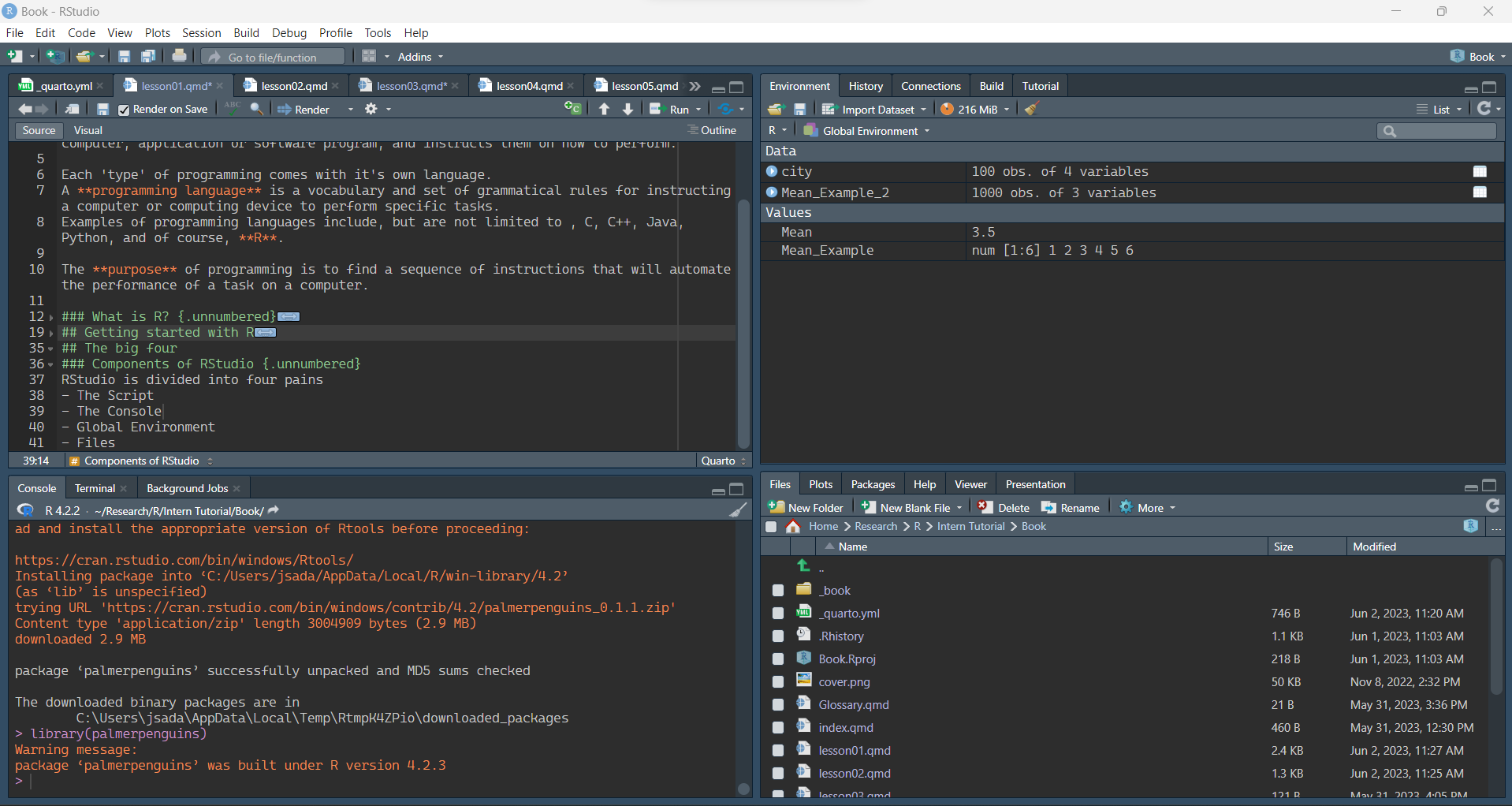
RStudio is divided into four panes
- The Script (top-left)
- The R Console (bottom-left)
- You Global Environment (top-right)
- Your Files/Plots/Packages/Help/Viewer (bottom-right)
The Script
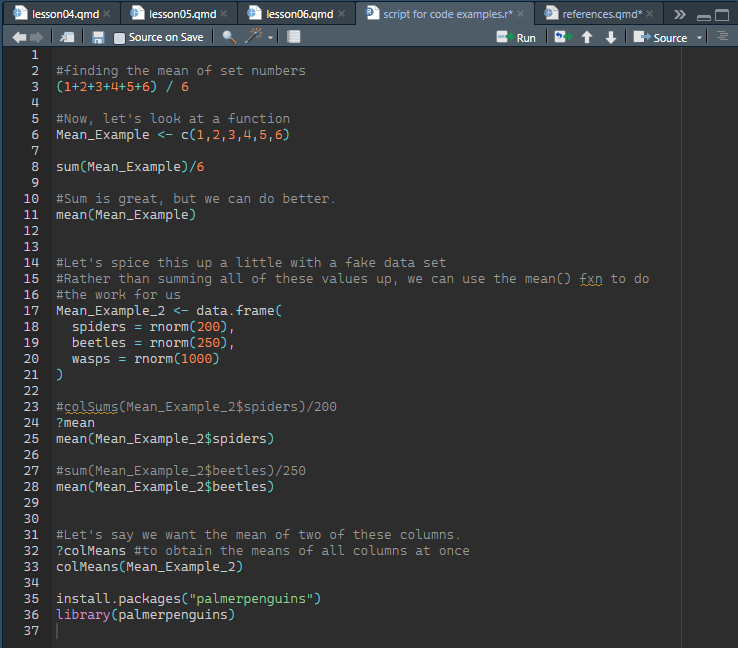
The section is where your written code will go. Whenever you are giving R commands to complete, this text will be entered in the script.
Along with this, the Script is where any open R files will be housed. This allows you to navigate between scripts with ease.
The R Console
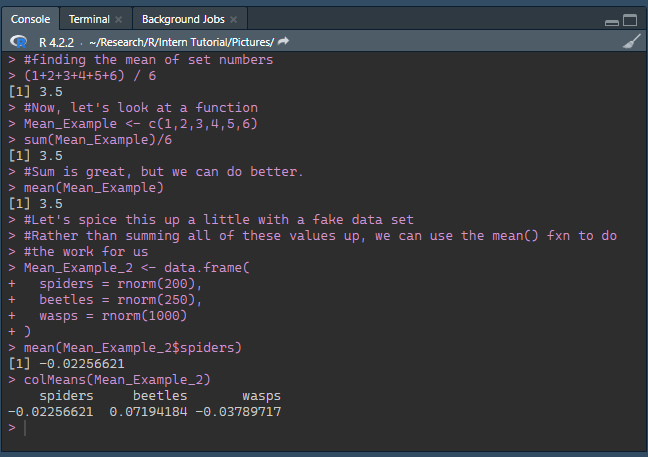
This section is where your outputs will be printed. Whenever you run a line in the script, the console will produce an output, or an error message if the line was unable to be run. As you can see in the picture below, the console’s output is both the line I ran, paired with the respective output.
1.3.0.1 The Global Environment
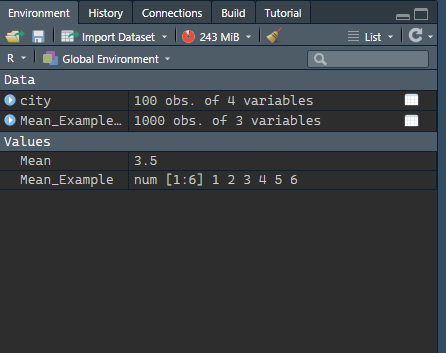
This pane is where any of your imported or created objects will go. These could include, but are not limited to, data sets, functions, vectors, values, etc. If you wish to view your full data set, you can click on the the object. If you wish to view the the column and row names, but not view the full object, you can select the blue and white arrow on the left-hand side of the object name.
Your Files/Plots/Packages/Help/Viewer
This pane of RStudio is where a lot of information can be found. You can navigate your computers files, view the plots you’ve developed, install packages, and find helpful information and examples within an easy-to-use search bar.